Before we learn more about Buy Crypto One-Click Buy with Third Party Channel, please note that Bybit does not handle fiat deposits directly, and this service is wholly handled by third-party payment providers.
Here is a guide on how to make a deposit via a third-party payment channel:
For Banxa, MoonPay, Mercuryo, Neofi, and Onramp
Step 1: Click on Buy Crypto → One-Click Buy at the top left corner of the navigation bar to enter the Buy function page.
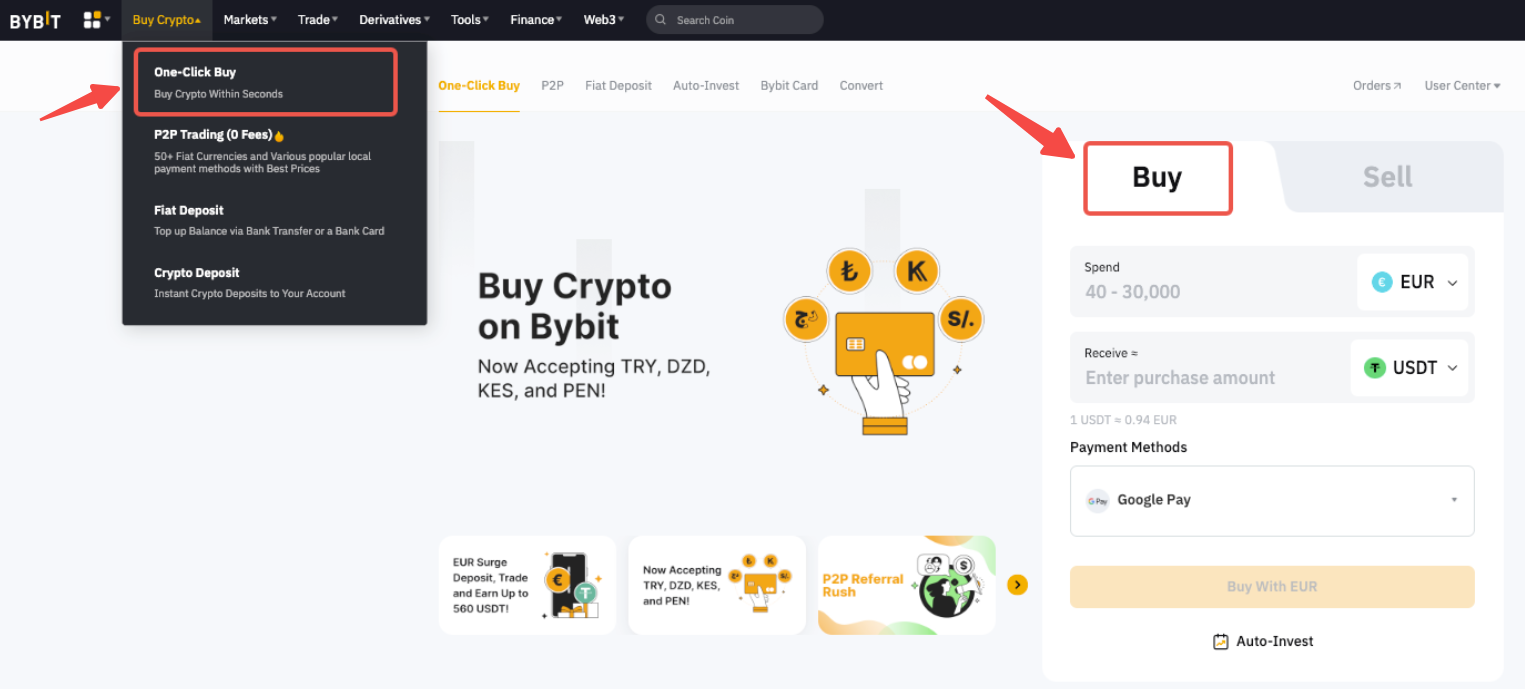
Alternatively, you may click on the link here to get a quick access to the Third Party deposit page.
Step 2: Please follow the steps below to place your order:
- Select the fiat currency
- Select the coin
- Enter the deposit amount
- Select a payment method that is listed under Third Party
- Click on Buy With Fiat and you will be redirected to the Third Party deposit page.

Note: Currently, only BTC / ETH / USDT is supported by the third party channel.
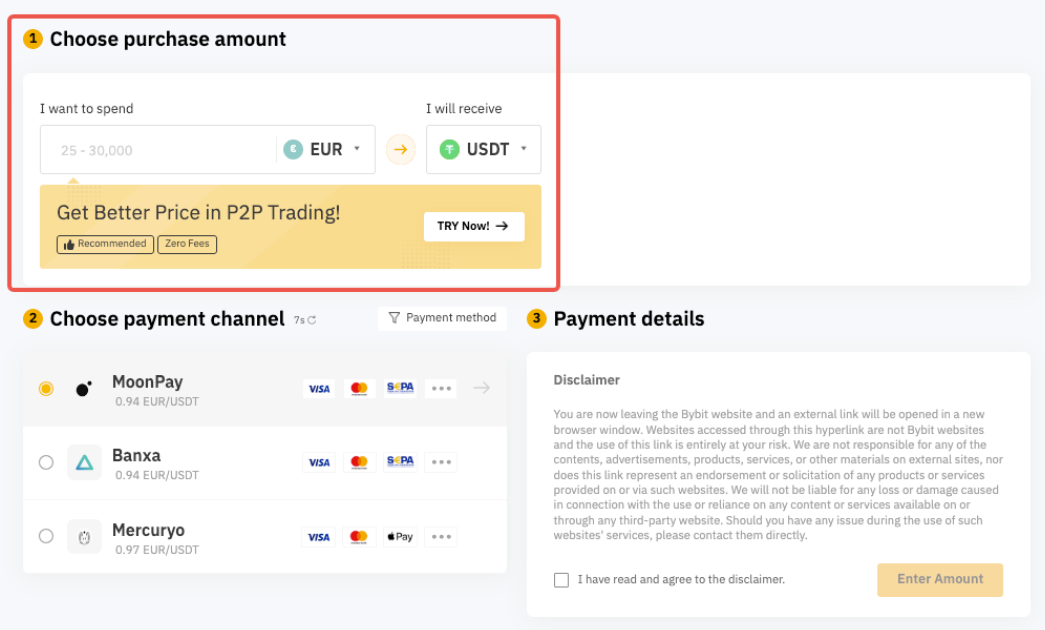
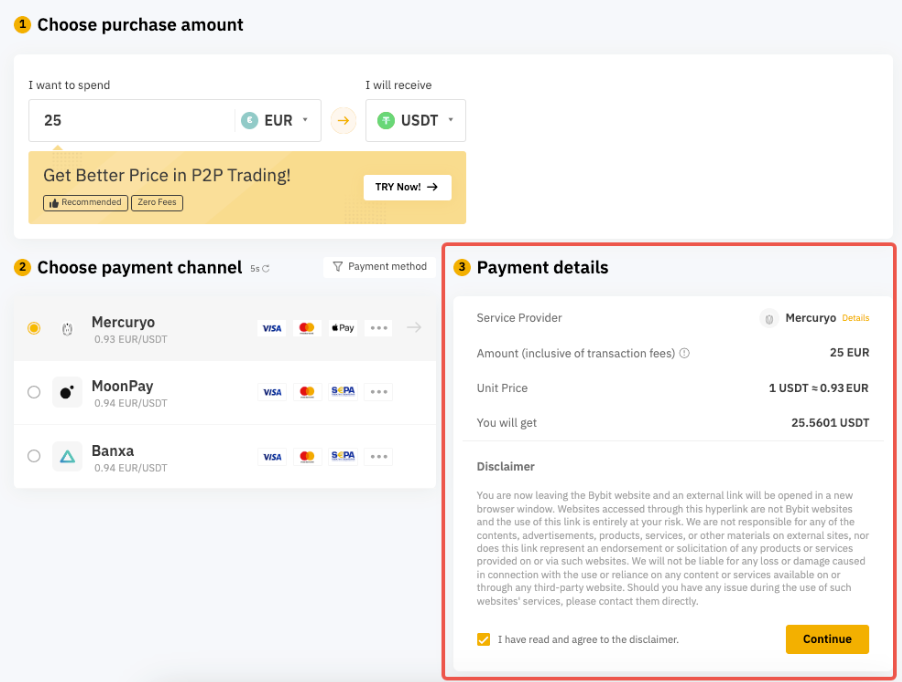
Step 3: In section 1, select the fiat currency you want to pay and the coin you would like to receive in your Bybit account. The purchase limit will be indicated in the amount input box and varies according to the provider.
Step 4: According to the fiat currency and cryptocurrency you selected in section 1, the supplier that provides the corresponding service is displayed in section 2 including the name of the service provider and reference quotation.
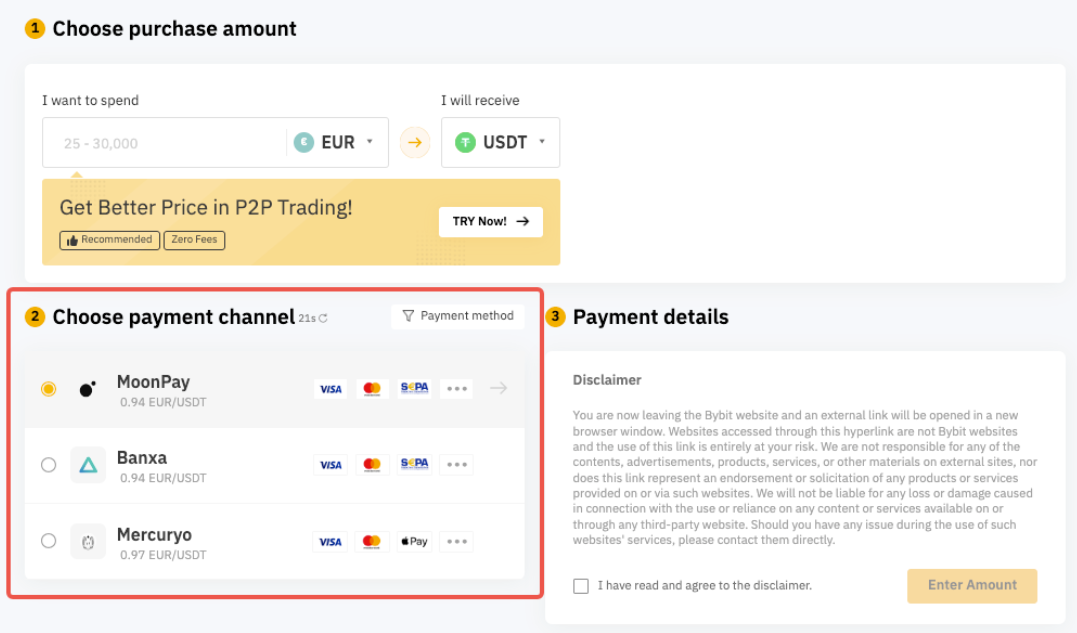
Note: The real-time quotation is for reference only. Please refer to the service provider’s website for the exact exchange rate. The real-time quotation in the upper right corner will be refreshed every 30 seconds. You can also click Refresh to get the latest quotation.
Step 5: Once you have entered the fiat amount and selected your preferred service provider, you can obtain the payment details in section 3, which include the following information:
- Name of the service provider
- Amount (inclusive of transaction fees)
- Reference quotation
- Estimated amount of convertible cryptocurrency
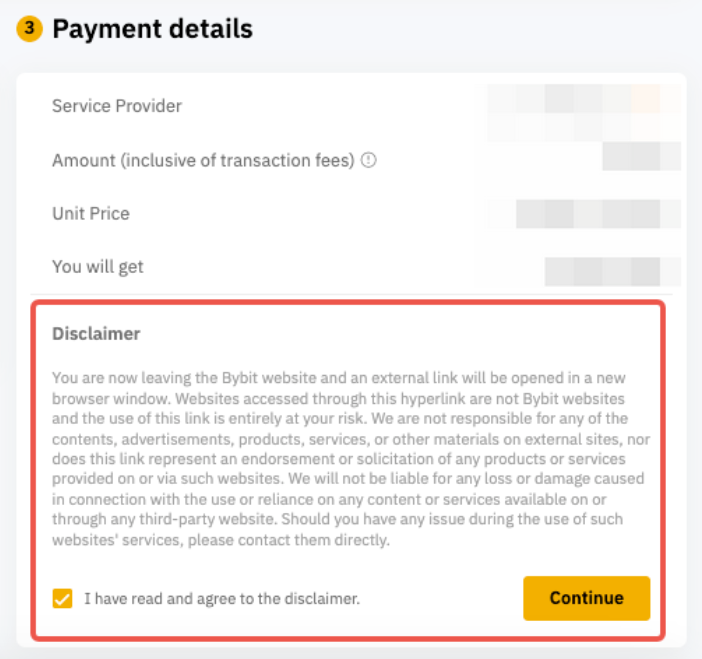
Step 6: Acknowledge the Disclaimer and click on Continue. You will be redirected to the third-party payment provider’s official webpage to proceed with the transaction.
Note: KYC verification is mandatory on third party provider platforms.
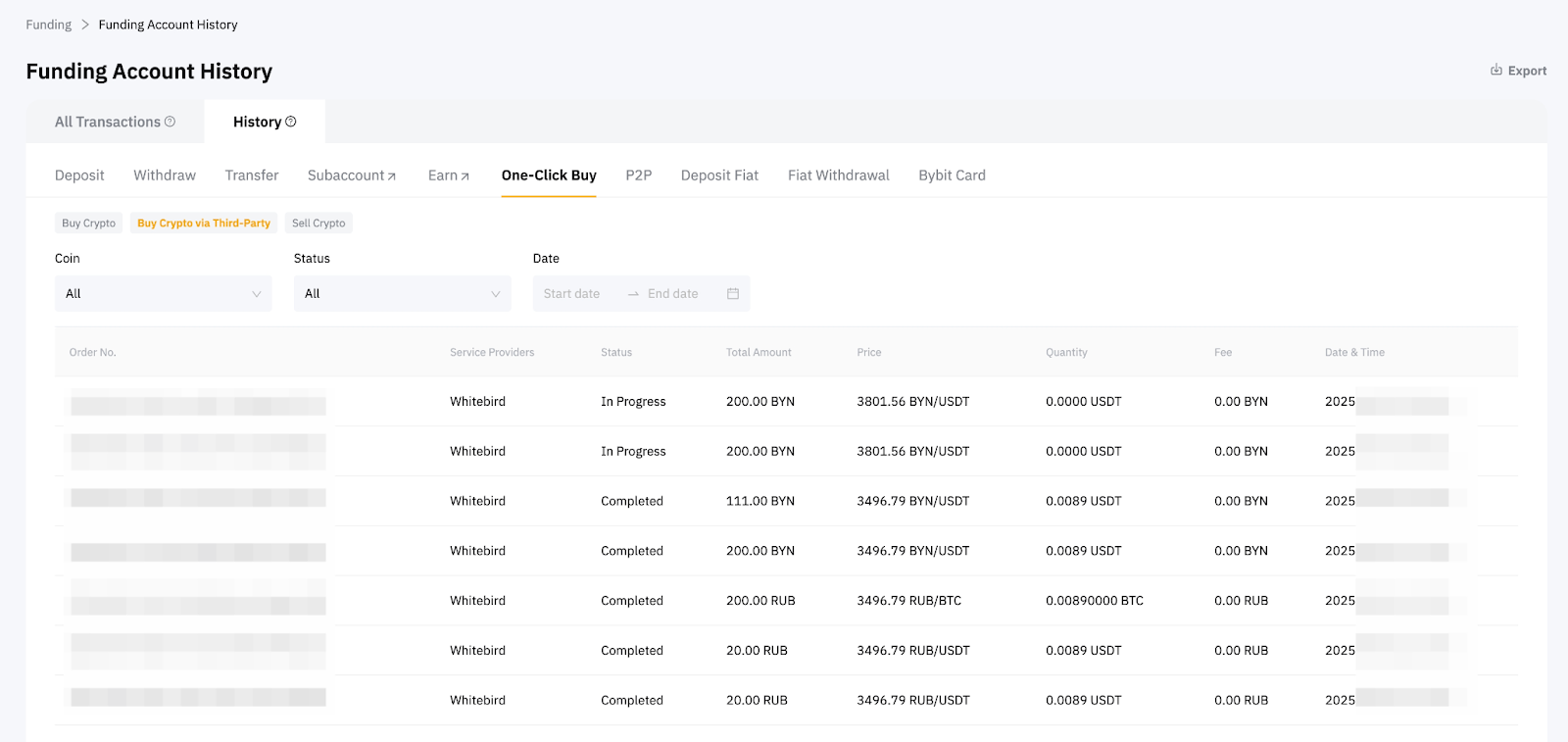
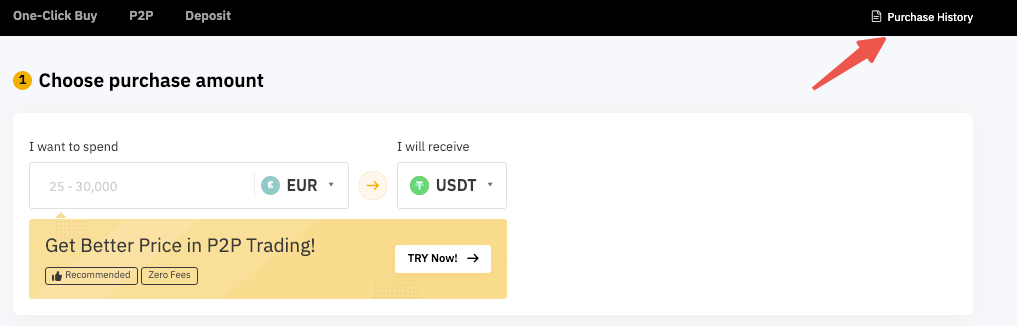
Step 7: After successfully purchasing crypto in your Bybit account, you can click on Purchase History to view historical transaction records.
If you have further questions, kindly refer to our FAQ — Buy Crypto via Third Party Channel.
For Onmeta
Onmeta is only available to Indian users who have completed Individual Verification.
Step 1: Click on Buy Crypto → One-Click Buy at the top left corner of the navigation bar to enter the Buy function page.
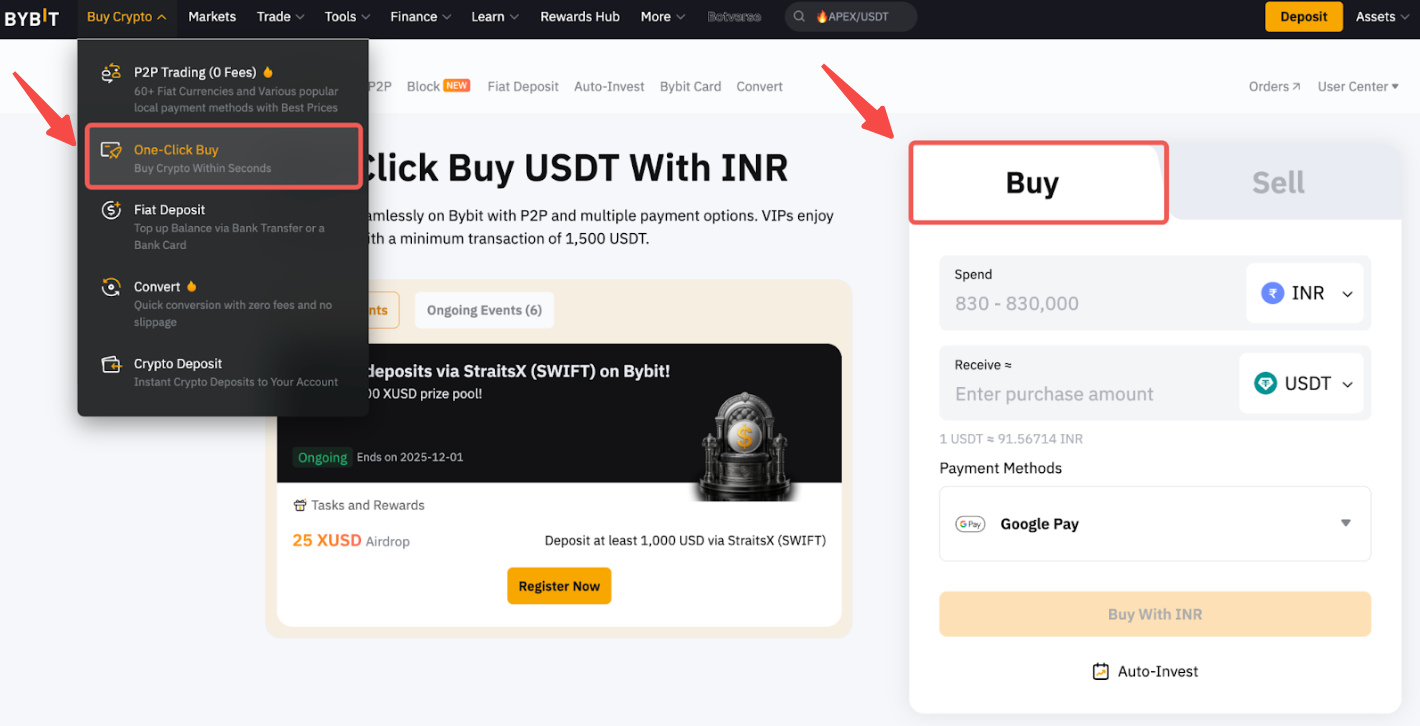
Alternatively, you may click on the link here to get quick access to the Third-Party deposit page.
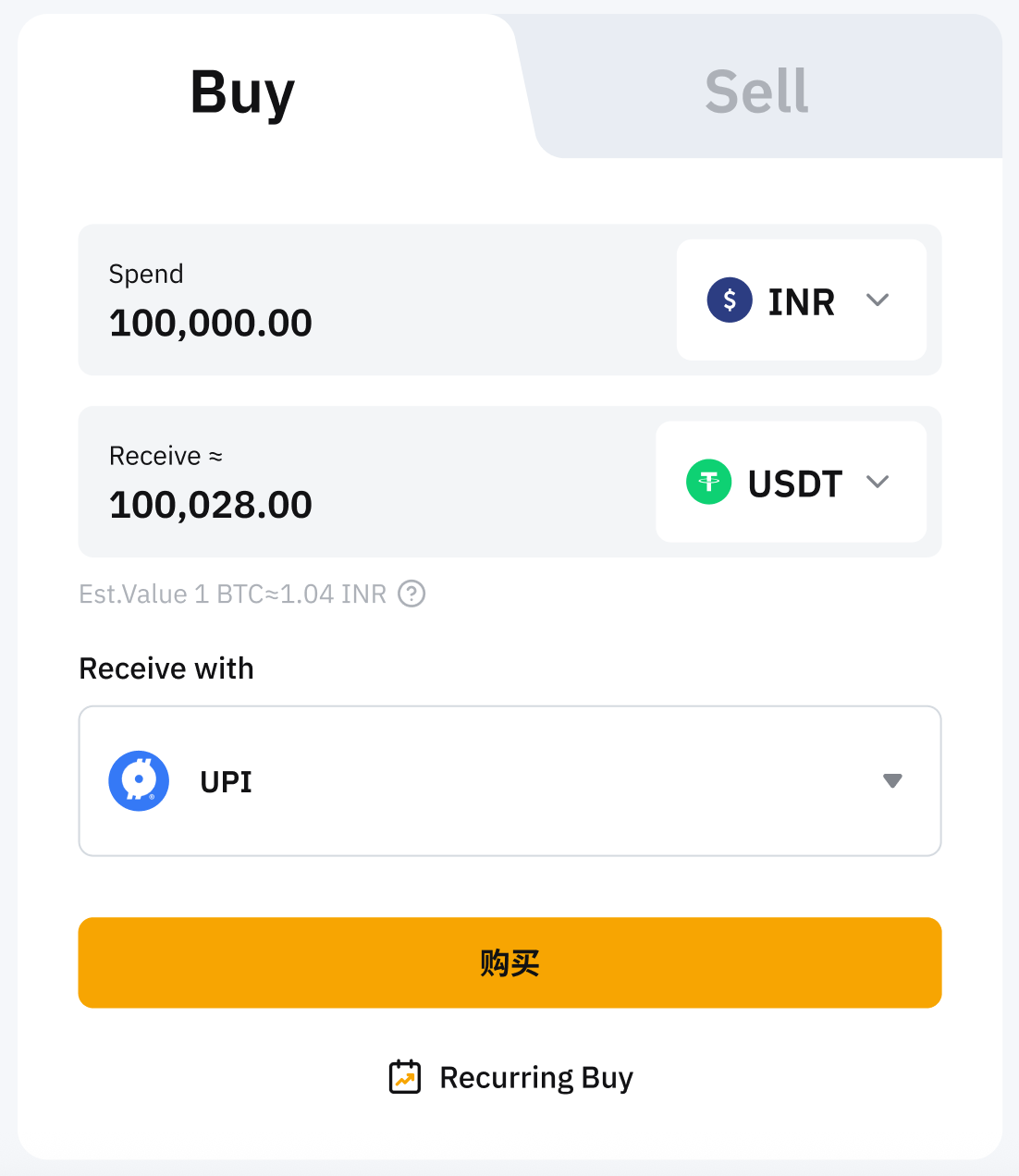
Step 2: Please follow the steps below to place your order:
- Select the INR currency
- Select the coin
- Enter the deposit amount
- Select the Onmeta payment method that is listed under Third Party
- Click on Buy With INR and you will be asked to create a new virtual account.
Notes:
- Currently, only USDT, USDC, BTC, ETH, POL, TON, SOL, BNB, and TRX are supported.
- In line with the third-party channel’s requirements, you will be required to provide additional information for review during the payment.
Step 3: On the Create New Account page, fill in your personal information, such as full name, email address, phone number, PAN number, Aadhaar number, etc. In some cases, you may be directed to the third-party platform to submit additional identity information.
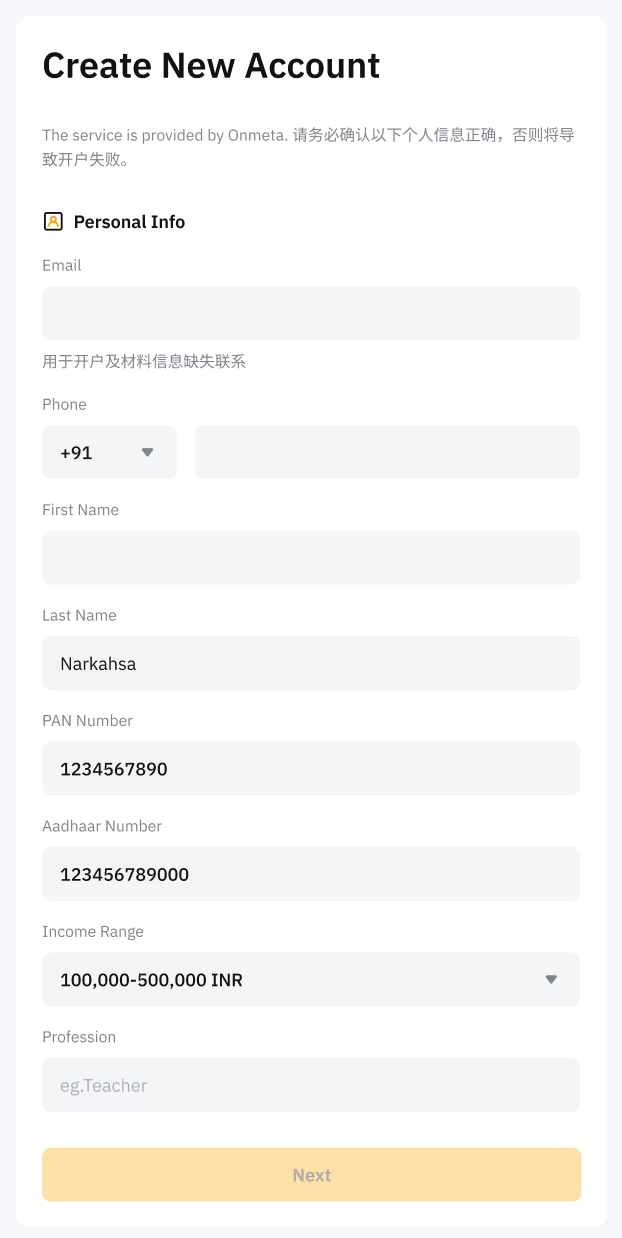
Note: The review process may take up to 24 hours to process. We will notify you of the results via your email.
Step 4: After the review is complete, you will be redirected to the Onmeta webpage to complete the payment.
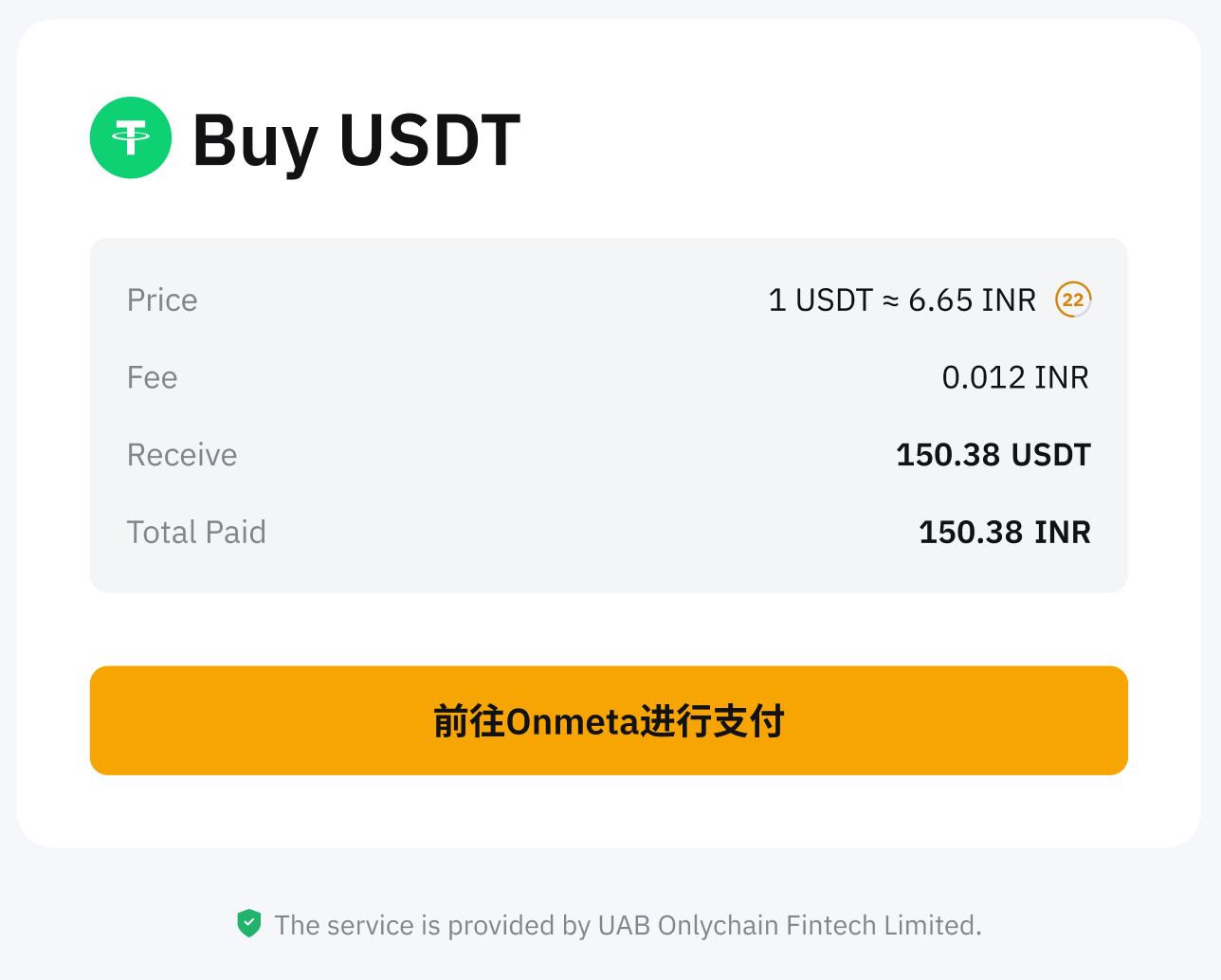
Step 5: After successfully purchasing crypto in your Bybit account, you can find your asset in the Funding Account. If you would like to view the historical transaction records, they can be found under the Buy Crypto via Third-Party on the Order History page.